Showing posts with label TFS. Show all posts

Tuesday, October 10, 2006

Team Development using MS TFS - Part 3

In part 1 and part 2 of this series we introduced TFS and its architecture.

I intended to close this series by writing about other aspects of team development using TFS. But a colleague pointed out that TFS deployment is not as easy as it looks to many. So I dedicate this post to the topic of installation. 
You can deploy TFS in two ways, single server or double server. Among reasons to use double server approach could be performance or distribution. In the double server implementation, application and database tiers will be physically separated and have more resources to utilize.

In this post I only discuss single server deployment.

Installation prerequisites 

1- User accounts

If the server in which you are installing TFS is part of a domain, you need three Active Directory domain user accounts.
If the server is a member of a workgroup, you can use local user accounts.


Sample user logon namePurpose
TFSSETUP
  • Used to run Team Foundation Server Setup.
  • This account must be an administrator on Team Foundation Server computers.
  • This account must be a member of the same domain as the following two service accounts. For example, you cannot have the two service accounts on a domain and then use a local account to run setup.
TFSSERVICE
  • Used as the service account by Team Foundation Server Windows services (Code Coverage Analysis Service and TFSServerScheduler), and the SharePoint Timer Service.
  • Used as the application pool identity by the Team Foundation Server application pool (TFS AppPool), and the Windows SharePoint Services application pools (TFWSS and TFSWSSADMIN).
  • Must have the Allow log on locally permission on Team Foundation Server computers.
  • For optimal security, this service account:
    - Should not be an administrator on Team Foundation Server computers.
    - Should have the option Account is sensitive and cannot be delegated selected for Active Directory on the domain.
TFSREPORTS
  • Used as the service account by SQL Server Reporting Services data sources.
  • This account should not be an administrator on Team Foundation Server computers.
  • This account must have the Allow log on locally permission on Team Foundation Server computers.
2- Login to the server using the Setup Account that you just created, TFSSETUP for example.
3- Install IIS 6.0 with ASP.NET enabled and without FrontPage server Extensions.
4- SQL Server Enterprise or Standard Edition. Please take note of following when installing SQL Server:
  • Install SQL Server as the default instance. Don’t name the instance.
  • Use the local system account for the service account. This should not be confused with the two service accounts you created prior to installation.
  • Install following services from SQL Services:
              - Database Services
              - Analysis Services
              - Reporting Services
              - Integration Services
  • Don't need to install Replication.
  • On the Report Server Installation Options page in the setup wizard, select "Install the default configuration".
5- Install SQL Server Hotfixes.
6- Install .NET Framework 2.0 Hotfix KB913393. It’s available on the TFS installation CD.

7- Install Windows SharePoint Service Service Pack 2. Install it with "Web Farm" option. You can download SharePoint Service Service Pack 2 from
here.
8- Eventually, install Team Foundation Server. During installation, the setup wizard asks about the Service Logon Account and Reporting Logon Account which you got to use the TFS Service Account (TFSSERVICE) and TFS Report Account (TFSREPORT) respectively.
 

Verification

To make sure the installation was successful, after restarting the server, open a browser and open http://localhost:8080/services/v1.0/Registration.asmx and click on GetRegistrationEntries. On the GetRegistrationEntries page, click Invoke without entering a ToolID. GetRegistrationEntries is a web method of a web service that is running on the Application Tier. The SOAP response from web service should look like this:

<?xml version="1.0" encoding="utf-8" ?>
<Type>vstfs</Type>
 

Installing a double server is not any different except that components are installed in different locations. Please feel free to share the problems you faced during TFS installation or administration.

Wednesday, October 04, 2006

Team Development using MS TFS - Part 2

In the first installment of this series, I introduced TFS.

This time, we are going to take a look at its architecture.

TFS is based on a multi-tiered architecture, consisting of a client tier, an application tier, and a data tier.
Data tier is a SQL Server that stores work-items, version-controlled source files, test results and other project metrics. (In TFS entities like requirements, test-cases, and defects are categorized under one group called work-items. Each sub-category has its own properties and you can extend the list of sub-categories.)
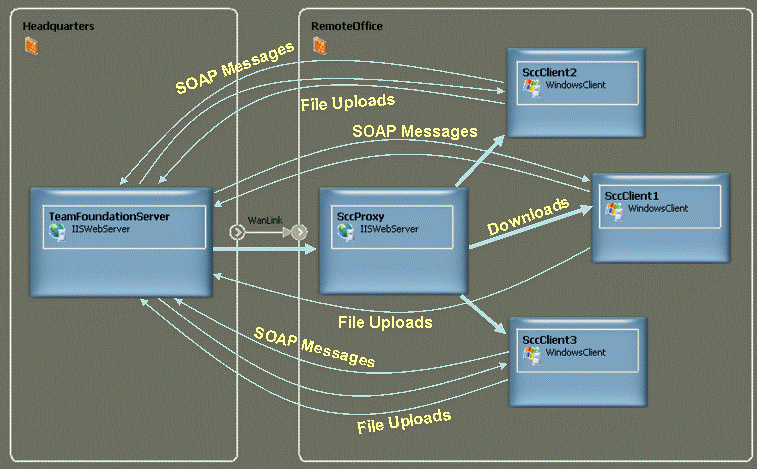
The application tier is composed of web-based applications that are integrated with IIS. These applications include SQL Server Reporting Services, TFS Core Services, and Windows SharePoint Services.Application tier hosts Team Foundation windows services as well.TFS uses Windows SharePoint Services to provide a project portal for team. SQL Server Reporting Services offers reports and queries from project’s work-items.TFS application tier also includes Team Foundation Build and TFS Server Proxy. Build server provides build automation. Server proxy has been built to be used in distributed developments. It caches previously accessed source control files to improve the performance of source control operations over low-bandwidth connections. Following picture shows a use case of TFS server proxy.


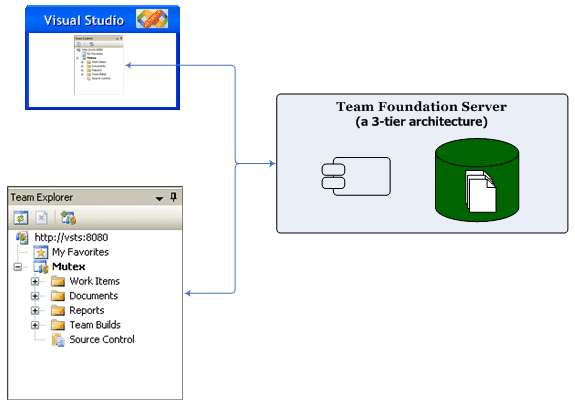
The client tier consists of a tool called Team Explorer. Referring to the picture in part 1, Team Explorer can be used as a standalone application or integrated with Visual Studio (except Express Edition). It also integrates with Microsoft Project and Microsoft Excel. This feature helps project managers to view project information and submit information to TFS using tools they are most comfortable with.
As for implementation suffice to say that there are two types of deployment (excluding Build and Server Proxy): single-server deployment, dual-server deployment (one server for data tier and one for application tier). Build and proxy servers can be installed on separate machines or on the same server that application tier has been installed. A complete installation guide can be found here.

Friday, September 29, 2006

Team Development using MS TFS - Part 1


This is the first part of a 3-part series about MS TFS (Microsoft® Team Foundation Server). Part 2 and Part 3 will follow.
 
To me, the biggest challenges of enterprise wide projects are managing the artifacts and deliverables in one single place, directing all development efforts toward one target, lack of project’s predictability, and last but not least distributed developments.


I’m mostly talking about development in Microsoft platform. Those who have worked with Rational Suite know how integrated and distributed it is. It allows you to manage all the retirements and their traceability, defects, and all the configurations in one single place. I’ve worked with Rational ClearCase and I must admit, although difficult, it's purely distributed.

That’s why I call the Team System the first grate step from Microsoft toward a real team development.

Now with that, a project manager can monitor everything in one single place and assign tasks and control the progress.
Architects, Testers, and DBAs can now be part of the game.
The initiative I like most in this product is its extensibility and customizability which I’m going to talk about it in one of the future posts of this series. 
A real team development using Microsoft .NET needs three things in term of tools: Visual Studio Team System, Team Foundation Server, and Methodology guideline.

Visual Studio Team System is series of role-based editions of Visual Studio. It offers different versions for three different roles; Architects, Developers, and Testers. Also there is a version called Team Suite that contains the functionalities of all those three versions that is suitable for those individuals that play all those roles in a project. Microsoft has recently released a new version named Team Edition for Database Professionals which is not included in above mentioned versions; even Team Suite.

Team Foundation Server is the backend engine for Team System that enables team to collaborate. Without TFS there is no team development. It’s this engine that keeps all the team members connected.
You are probably wondering what the Team Explorer in the picture is.
Well, it’s a member component of TFS through which you can explore a team project inside TFS. It can be used as a standalone client or can be integrated with Visual Studio. I should say it’s the client tier of TFS.

About the third piece, a methodology guideline, TFS carries MSF (Microsoft’s process framework) in two forms, Agile MSF and CMMI MSF.
If you need to embed other process guidelines in TFS, RUP for example, you need to use third party tools.
In future parts, I intend to write more about TFS's architecture, how it works, installation and configuration, how to embed RUP’s guideline, and how to manage it.